
🧭 Introduction
After learning what PLS-CADD is and how it fits into the overhead line design process (as explained in Article 1), it’s time to get hands-on with the software interface.
In this article, you’ll learn how to:
- Navigate the PLS-CADD interface
- Use the Project Wizard to start or open a model
- Understand the different views (Profile, Plan, 3D, Sheets)
- Customize your workspace and preferences
By the end, you’ll be fully prepared to open your first line model and understand how PLS-CADD organizes and displays your data.
🖥️ Getting Started with PLS-CADD
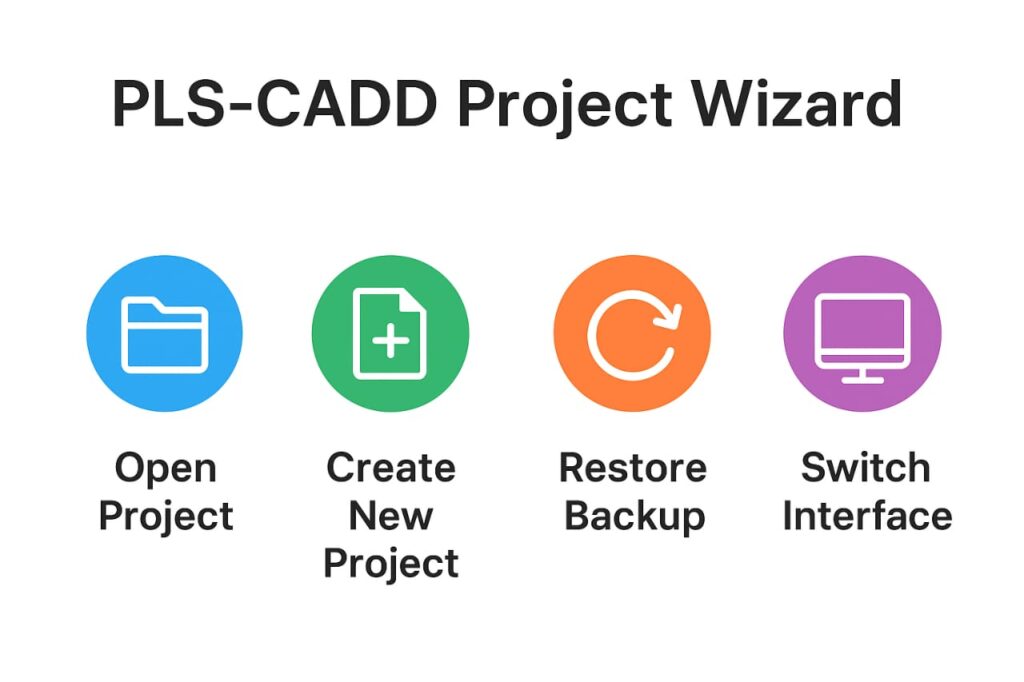
When you open PLS-CADD for the first time, you’ll see the Project Wizard — a friendly startup tool that guides you through opening, creating, or restoring a project.
🔹 The Project Wizard Options
The Project Wizard provides quick access to all major tasks:
- Open Recent Projects – Quickly access your most recently used line models.
- Create a New Project – Start from scratch using standard, Lite, or Ultralite versions.
- Restore Project from Backup – Load a
.bakfile to recover an archived project. - Install Upgrade – Apply new version codes or feature updates.
- Switch to Classic Interface – For experienced users who prefer the traditional menu layout.
You can always reopen the Project Wizard later from File → Preferences → Settings → Show Project Wizard on Startup.
📁 Creating a New Project
When you click Create New Project, PLS-CADD allows you to choose among three types:
| Project Type | File Extension | Description |
|---|---|---|
| Standard Project | .xyz or .pfl | Full-featured model with terrain, structures, and design. |
| Lite Project | .loa | Limited to sag-tension and structure load tree analysis. |
| Ultralite Project | .ult | Minimal features for quick demonstrations. |
Beginners should start with the Demo Line Project — it includes pre-loaded terrain, structures, and cables so you can explore safely without altering any real data.
🪟 Understanding the PLS-CADD Windows
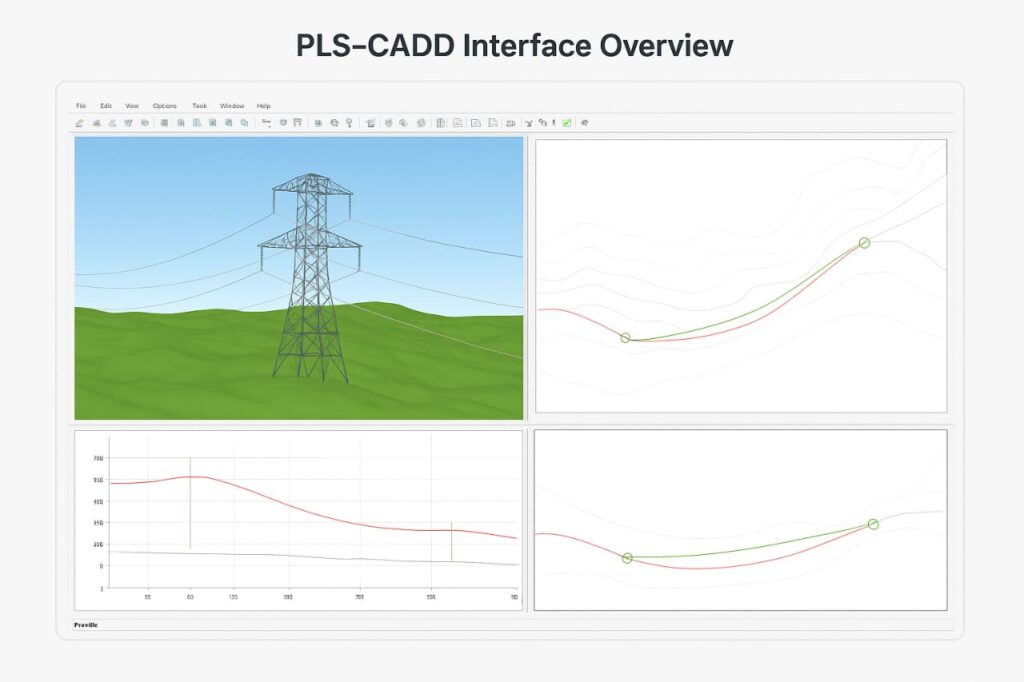
Once a project is open, PLS-CADD displays its model across multiple synchronized windows. These windows represent different views of the same line model.
🔸 1. Profile View
Shows the elevation of the line along the alignment — helpful for checking tower heights, sag, and clearance.
🔸 2. Plan View
Displays the top view of the line — ideal for verifying route alignment and tower positions.
🔸 3. 3D View
A realistic three-dimensional visualization where you can rotate, zoom, and inspect structures, insulators, and conductors from any angle.
🔸 4. Sheets View
Automatically generates plan & profile drawings for documentation. PLS-CADD updates these drawings in real time as you make design changes.
🔸 5. Project Window
Lists files, data libraries, and parameters associated with your project (terrain, cables, structures, design criteria, etc.).
All windows are synchronized — move your cursor in one view and a red marker appears in others, showing the same point in 3D space.
🧭 Customizing Your Workspace
PLS-CADD allows full customization of the user interface:
- Toolbars – Toggle or rearrange under View → Toolbars.
- Tabs – You can show window tabs at the top or bottom of the screen.
- Detach Windows – Right-click → Detach Window to move a view to another monitor (useful for dual-screen setups).
- Window States – Use Window → Save Window State to save your preferred layout.
- Background Color & Fonts – Change through File → Preferences → View Background Color / Fonts.
💡 Tip: Try “Tile Windows” under Window → Tile to view the Plan, Profile, and 3D views together — ideal for learning how they interact.
⚙️ File Menu Basics
The File Menu is where all project management happens.
Here’s a breakdown of the most used commands:
| Menu Command | Function |
|---|---|
| File → Open | Load existing .xyz or .pfl model. |
| File → New | Start a new project. |
| File → Save | Save current project and all associated data files. |
| File → Backup | Create a .bak file including terrain, structure, cable, and part libraries. |
| File → Restore Backup | Extract and reopen a backed-up project. |
| File → Preferences | Change settings like units, fonts, and file paths. |
Always remember to backup your project regularly — it saves a complete, portable version of your model.
⚖️ Setting Up Units and Preferences
Under File → Preferences, you’ll find several important options that define how PLS-CADD behaves.
⚙️ 1. Unit System
Choose between:
- US Customary Units (ft, lbs, °F)
- SI Units (m, N, °C)
- SI Units (m, daN, °C)
You can even switch unit systems mid-project — PLS-CADD automatically converts data.
⚙️ 2. Sag Method
Choose whether to calculate sag using:
- Catenary Constant, or
- Horizontal Component of Tension
⚙️ 3. File Directories
Define where PLS-CADD stores:
- Project files
- Structure libraries
- Cable data
- Parts database
- Schema files
This helps you maintain a clean, organized workspace and avoid file confusion.
⚙️ 4. Font and Color Customization
You can set custom fonts for reports, tables, and graphics views to improve readability.
🗂️ Saving, Backing Up, and Moving Projects
Every PLS-CADD project consists of multiple interlinked files (.xyz, .str, .cri, .don, .pps, etc.).
To back up a complete project, go to:
File → Backup
This creates a single .bak archive containing all essential project and library files.
To restore, use:
File → Restore Backup
💡 Tip: When transferring projects between computers, use Backup and Restore Backup instead of copying folders manually — it preserves file paths and dependencies safely.
🧭 Exploring Toolbars and Status Bar
Below the menu bar, you’ll find toolbars for quick access to essential commands:
- Standard Toolbar – File operations and undo/redo
- 3D Toolbar – Zoom, rotate, and pan controls
- Alignment Toolbar – Tools for alignment editing
- Structures Toolbar – Add or modify structures
- Sections Toolbar – Sag and section management
- Applications Toolbar – Quick launch for PLS-TOWER or PLS-POLE
At the bottom lies the Status Bar, which displays:
- Coordinates of the cursor
- Unit system
- Finite element status
- Current background processes
Double-clicking on any status bar section opens its related dialog box (for example, double-clicking the Units section opens File → Preferences).
🧭 Viewing and Navigating the 3D Model
🔹 Zoom & Pan
Use the + / – keys or toolbar icons to zoom in and out.
Drag with the mouse to pan.
🔹 Rotate the View
Use the Lat/Long toolbar buttons or Page Up/Page Down/Home/End keys to rotate the 3D model.
🔹 Measure Distances
Use View → Measure Distance → Between Points to check sag, span, or clearance values directly on-screen.
🔹 Restore View
If you get lost, select View → Initial to reset the view to the model’s default position.
🧰 Display Options and Labels
PLS-CADD provides powerful display customization options via:
Drafting → Display Options
You can control:
- Structure colors and symbols
- Cable visibility
- Alignment direction arrows
- Labeling of spans, sags, and phases
- Background color (black or white)
For example:
- Enable Show Structure Compass to view each structure’s local coordinate system.
- Enable Show Stringing Direction to visualize conductor installation direction.
📈 Understanding the PLS-CADD Interface Layout
Here’s a quick summary of how the PLS-CADD workspace is structured:
| Section | Purpose |
|---|---|
| Menu Bar | All tools and settings are accessible here. |
| Toolbars | Quick icons for frequent commands. |
| Main Views | Plan, Profile, 3D, and Sheets – the core design visuals. |
| Status Bar | Displays coordinates, units, and model status. |
| Tabs/Windows | Manage open views and reports easily. |
This layout keeps both beginner and advanced users efficient, ensuring that every design operation is just one or two clicks away.
🧭 Tips for Beginners
- Use the Demo Project First – It’s risk-free and great for exploring.
- Experiment with Views – Tile all views to understand 3D relationships.
- Save Often – Use versioned filenames like
Project_v1,Project_v2. - Keep a Backup Folder – Always backup before major edits.
- Explore Preferences – Small tweaks can improve workflow speed dramatically.
🧱 Key Takeaways
- The Project Wizard simplifies creating, restoring, and managing projects.
- PLS-CADD’s views (Plan, Profile, 3D, Sheets) provide real-time visualization.
- The Preferences dialog controls units, colors, directories, and sag methods.
- Always use Backup and Restore to move projects safely.
- Understanding the interface is the foundation for advanced modeling.
✅ Conclusion
Understanding the PLS-CADD interface is the first real step toward becoming proficient in power line design.
Once you master the Project Wizard, file management, and viewing tools, you can confidently start creating and analyzing your own transmission line models.
In the next part of this beginner series, we’ll explore “Setting Up Preferences and Units in PLS-CADD” — where you’ll learn to standardize design units, fonts, directories, and appearance for professional project templates.
📲 Want to Get Enrolled for PLS-CADD Training Courses?
👉 Join our official training for full PLS-CADD beginner to advanced training programs:
🔗 CLICK HERE TO CONNECT US ON WHATSAPP