
Introduction
File management is one of the most overlooked yet critical skills in PLS-CADD. Every model you create—terrain, structures, cables, or design criteria—relies on linked data files.
If one file goes missing or is overwritten, your entire project can break.
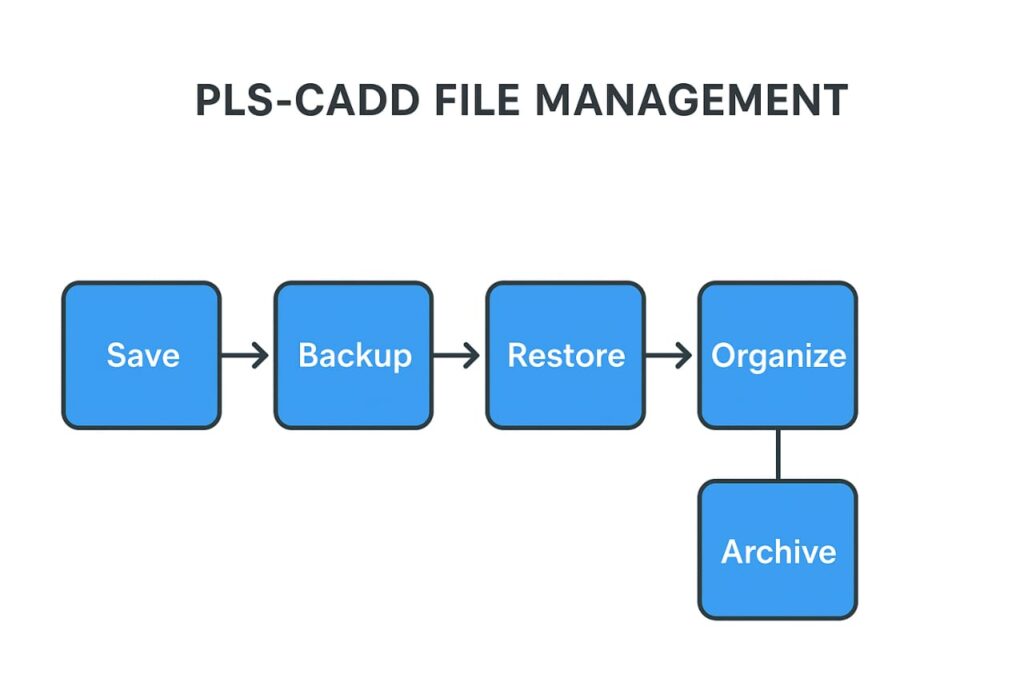
In this article, you’ll learn how to save, back up, restore, and organize your PLS-CADD projects like a professional.
Before you start, check out:
- 👉 Article 1: Introduction to PLS-CADD and Its Applications
- 👉 Article 2: Understanding the PLS-CADD Interface and Project Wizard
- 👉 Article 3: Setting Up Preferences and Units in PLS-CADD
Together, they build the foundation for this practical lesson.
💾 Understanding PLS-CADD Project Structure
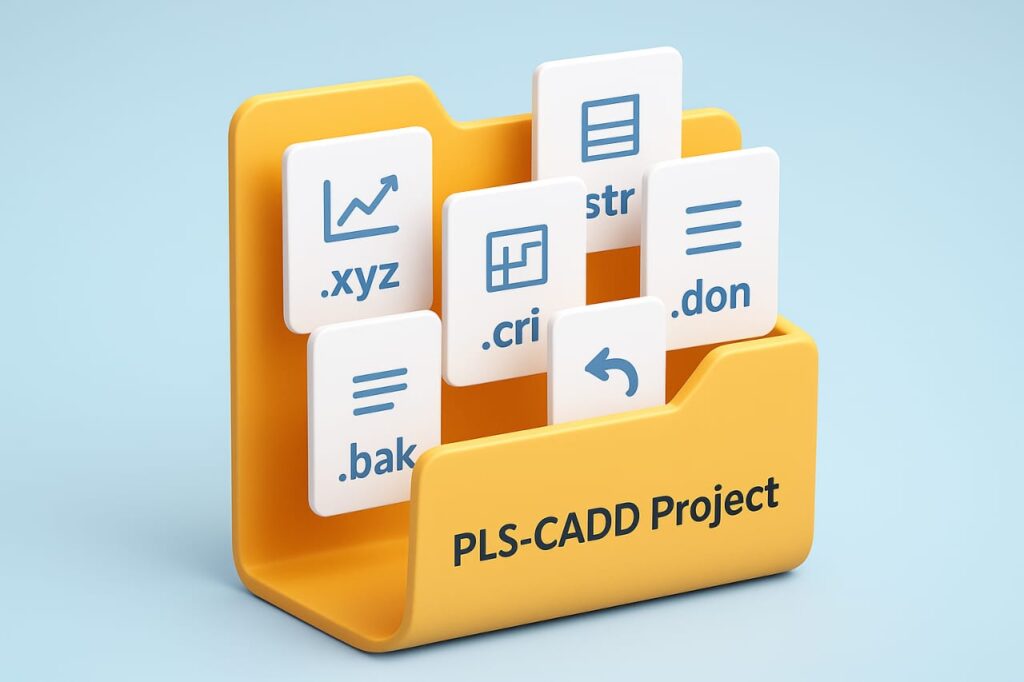
Each PLS-CADD project consists of several interconnected files.
Here are the most common ones:
| File Extension | Description | Example |
|---|---|---|
.xyz | Terrain survey data (X,Y,Z points) | terrain.xyz |
.pfl | Ground profile file | line.pfl |
.str | Structure library | towers.str |
.cri | Design criteria (loads, temperatures, clearances) | criteria.cri |
.cbl | Conductor / OPGW data | conductor.cbl |
.don | Line geometry and structure locations | alignment.don |
.pps | Plan-and-profile sheet setup | sheet.pps |
.bak | Complete project backup | project.bak |
PLS-CADD reads all these automatically when you open your main project file.
Therefore, keeping them organized in proper directories is essential.
💾 Step 1 – Saving Your Project Correctly
When starting a new project:
- Go to File → Save As.
- Create a dedicated folder, e.g.,
C:\PLS-CADD\Projects\Line_A. - Save your project with a meaningful name, like
LineA_Main.pfl.
💡 Tip: Use clear, versioned filenames such as LineA_v1, LineA_v2 for tracking changes.
Auto-Save Feature
PLS-CADD automatically keeps a copy every few minutes (set interval under File → Preferences → Auto Backup Interval).
Still, you should always save manually before closing or running large analyses.
🗂️ Step 2 – Using the Backup Command
The safest way to archive your project is via:
File → Backup
This creates a .bak file that contains all linked components:
- Terrain (.xyz)
- Criteria (.cri)
- Structures (.str)
- Cables (.cbl)
- Parts library (.prt)
- Geometry (.don)
You can store this .bak on your network drive or cloud storage.
📦 Why Use Backups
- One-click restoration of your entire model
- Keeps file paths consistent
- Prevents missing-library errors
- Ideal for transferring between computers or teams
💡 Naming Tip: Use a timestamp format like ProjectName_2025-10-18.bak for clarity.
🔁 Step 3 – Restoring a Backup
To open a saved backup:
- Go to File → Restore Backup
- Select your
.bakfile - Choose a target directory (preferably a new folder)
- Click Restore
PLS-CADD automatically extracts all subfiles and re-links them.
Once restored, open the main .pfl file to continue your work.
📦 Step 4 – Auto-Organize Feature
PLS-CADD includes a powerful Auto Organize Files function that automatically sorts all project components.
Go to:
File → Preferences → Auto Organize Files
It creates sub-folders like:
/Terrain
/Structures
/Cables
/Criteria
/Sheets
Advantages:
- Keeps projects tidy
- Avoids missing-reference errors
- Makes backups smaller and faster
💡 Tip: Always enable Auto-Organize when starting a new project (see Article 3 for setting preferences).
🧱 Step 5 – Version Control and Naming Conventions
Having multiple team members on one line design can get messy.
Use consistent version control rules:
| File Type | Example Version Name | Note |
|---|---|---|
| Main Project | 380kV_Main_v1.pfl | Base Model |
| After Revision | 380kV_Main_v2.pfl | New alignment |
| Final Issued | 380kV_Main_FINAL.pfl | Approved |
You can also keep a Change Log.txt file inside your project folder to document updates.
⚙️ Step 6 – Moving Projects Between Computers
If you simply copy folders manually, PLS-CADD may lose links to libraries.
Instead, use:
File → Backup → move the
.bak→ File → Restore Backup on the new system.
This guarantees that:
- All directories rebuild automatically
- Paths to structure and cable libraries remain valid
- Preferences load correctly
💡 Always restore into a new folder to keep old backups intact.
🔐 Step 7 – Protecting Your Data
Transmission line projects are valuable assets. Protect them like any other engineering deliverable.
Recommended Practices:
- Store
.bakfiles on at least two devices (local + cloud). - Enable Windows File History or use Git/OneDrive.
- Backup before importing new survey or structure data.
- Keep a copy of your preferences (.ini) file with each backup.
📊 Step 8 – Cleaning and Archiving Old Projects
When a project is complete:
- Remove temporary files like
.tmpand.bak.old. - Keep the final
.bakand.pdfdrawings only. - Zip and store the archive in a folder such as
C:\PLS-CADD\Archives\2025_Completed.
This keeps your working directory light and speeds up software performance.
🧰 Step 9 – Checking Project Integrity
Use:
File → Project Check
PLS-CADD scans all linked files and reports missing or mismatched components.
This step should be done before final submission or team sharing.
🧠 Pro Tips for Beginners
- Always backup before upgrading PLS-CADD versions.
- Never edit file extensions manually.
- Keep consistent folder structures across projects.
- Name files logically for quick reference.
- Store backups offsite for disaster recovery.
🧭 Key Takeaways
- PLS-CADD projects rely on multiple linked data files.
- Use File → Backup and File → Restore Backup for safe archiving.
- The Auto-Organize feature prevents missing file issues.
- Proper file naming and version control save hours of rework.
- Regular backups ensure data integrity and project continuity.
✅ Conclusion
Effective file management in PLS-CADD is the key to a stable and reliable design workflow.
By following this guide, you can prevent data loss, share models easily, and maintain version-controlled archives for every project stage.
If you’re just joining the learning series, explore the earlier lessons:
- 🔗 Article 1 – Introduction to PLS-CADD and Its Applications
- 🔗 Article 2 – Understanding the PLS-CADD Interface and Project Wizard
- 🔗 Article 3 – Setting Up Preferences and Units in PLS-CADD
Next in the beginner series, we’ll move to visualization techniques—learning how to use the Profile, Plan, and 3D Views effectively for line design review and presentation.
📲 Want to Get Enrolled for PLS-CADD Training Courses?
👉 Connect us on WhatsApp for training for complete Beginner to Advanced PLS-CADD Courses:
🔗 CLICK HERE TO GET CONNECTED ON WHATSAPP
Respect to website author, some fantastic selective information.