
Introduction: What is PLS-CADD and Why is It Important?
PLS-CADD (Power Line Systems – Computer Aided Design and Drafting) is an advanced engineering software widely used for the design and analysis of power transmission lines. From terrain modeling to structure placement, this software helps engineers create accurate, safe, and cost-effective transmission lines.
In this guide, we’ll take a step-by-step look at the PLS-CADD interface for beginners, explaining everything you need to know to get started. Whether you’re a student, professional engineer, or simply someone looking to understand how to work with PLS-CADD, this article will break it down for you.
Let’s dive right in and understand how to navigate PLS-CADD from the very beginning!
Step 1: Opening PLS-CADD Software
To get started with PLS-CADD, follow these simple steps:
Search for PLS-CADD in your system:
Open the Windows Start Menu and type PLS CADD in the search bar. The software will appear as an application, as shown in the image below:
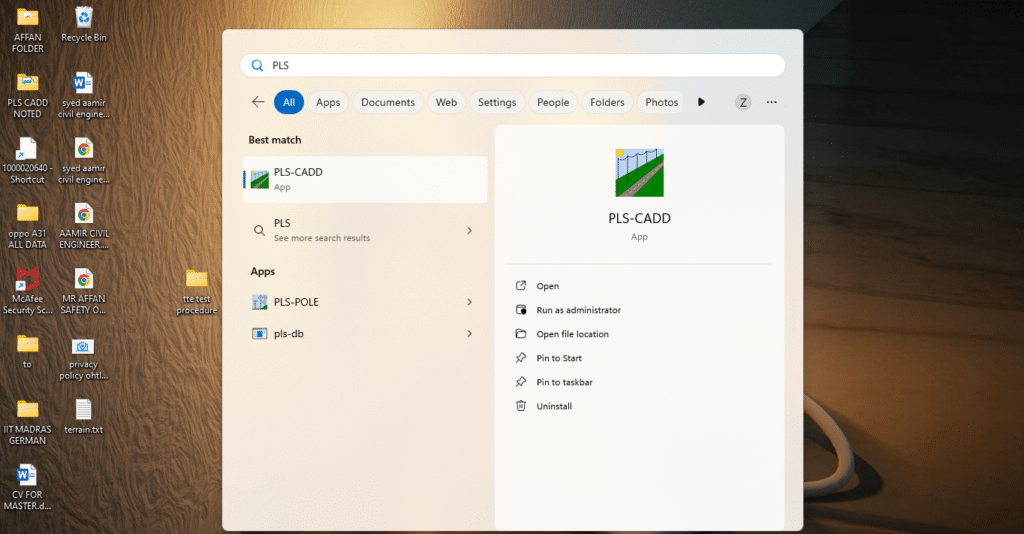
Click on PLS-CADD to open:
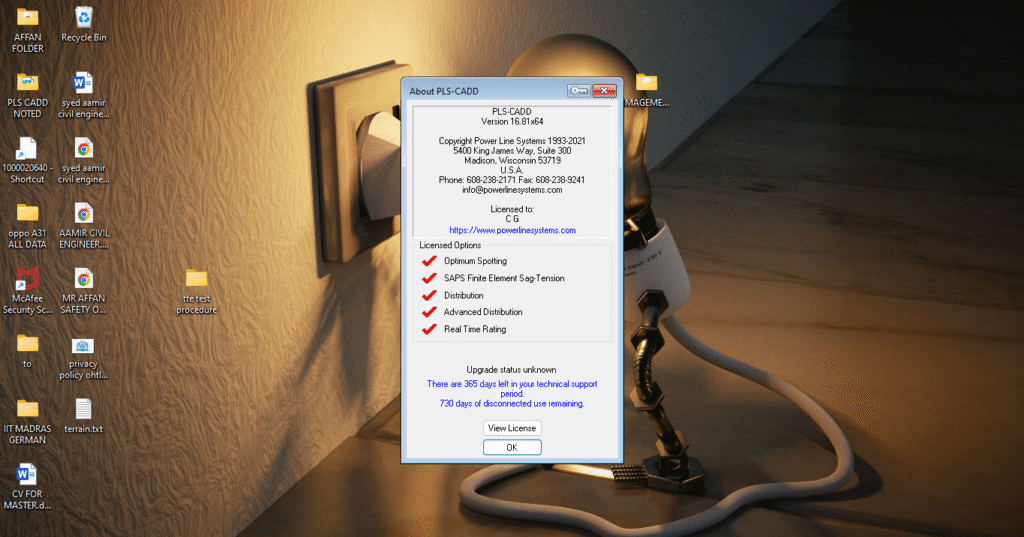
Once the software is opened, you’ll be greeted by the About PLS-CADD window (image below). Click OK to proceed.
Step 2: Tips of the Day and Interface Overview
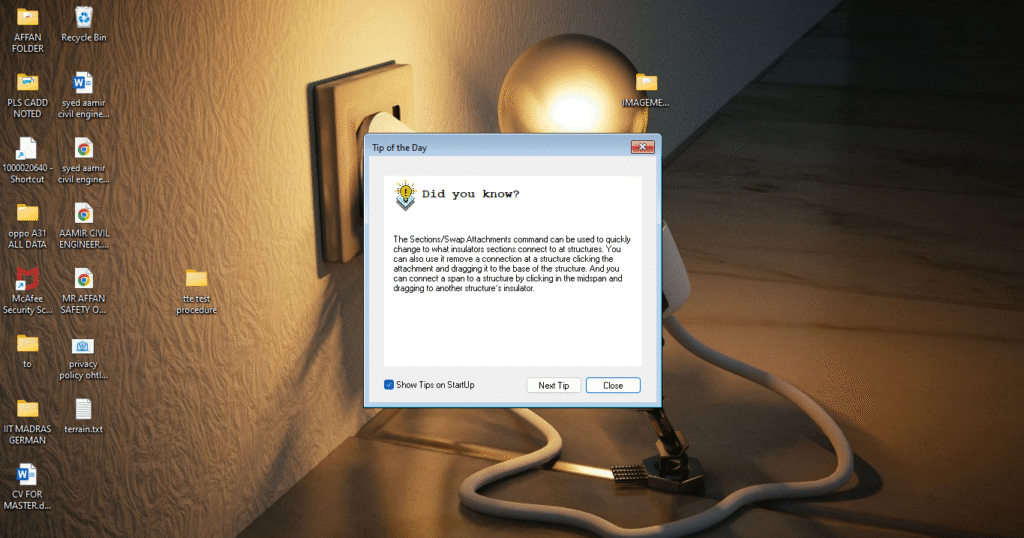
When you launch PLS-CADD, you’ll see a “Tip of the Day” window appear. This is a small help window that shares useful tips to improve your workflow within the software. You can choose to Close or Explore Tips further.
These tips can significantly enhance your user experience by teaching shortcuts or hidden features of the software. It’s highly recommended to check them out from time to time.
Step 3: Creating a New Project in PLS-CADD
To start a new project in PLS-CADD, follow these steps:
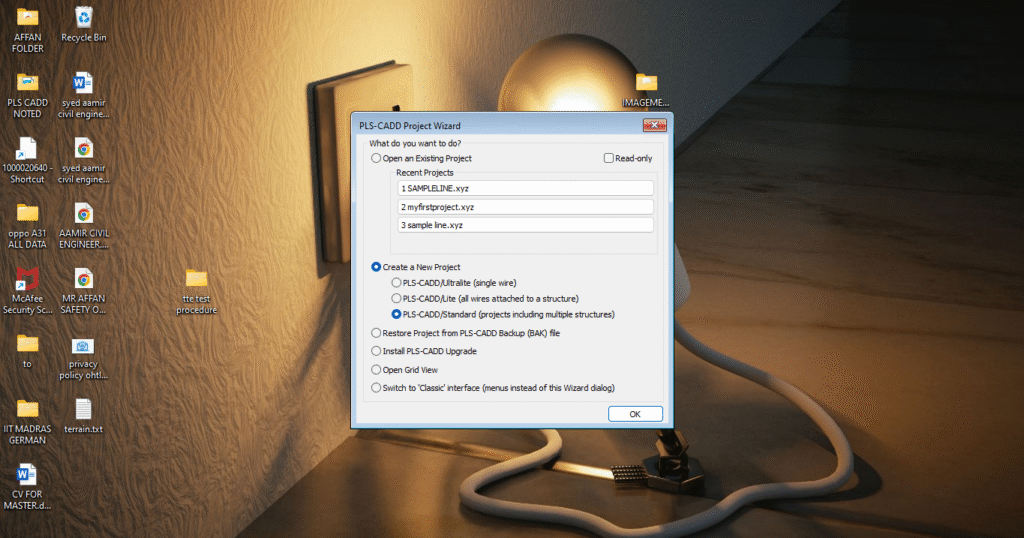
- Select “Create a New Project”:
When you open PLS-CADD, you will see the PLS-CADD Project Wizard. This is where you can choose to create a new project or open an existing one. Select PLS-CADD/Standard if you’re creating a project with multiple structures. - Enter Project Name:
Give your project a name (e.g.,SampleLine) and click OK. - Choose a Location for Your Project File:
You will be asked to select the location where you want to save your project files. After selecting your folder, click Open.
Once this step is done, PLS-CADD will open your new project file, ready for you to start working on your transmission line design!
Step 4: Navigating the PLS-CADD Interface
Now that we’ve created a new project, let’s break down the PLS-CADD interface in detail.

1. The Title Bar
At the very top, you’ll see the Title Bar. This bar shows the name of your current project, such as SampleLine.xyz. It helps you keep track of the project you are working on.
2. The Menu Bar
Just below the title bar is the Menu Bar with the following options:
- File: To open, save, or export your project files.
- Edit: Undo, redo, or modify existing items.
- View: Switch between Plan View, Profile View, and 3D View.
- Terrain: Import terrain data (XYZ files) and work with topographic models.
- Structures: Add and manage transmission towers or poles.
- Lines: Create and manage your transmission line path (horizontal alignment).
These menus are essential for accessing all the tools and features in PLS-CADD.
3. Toolbar
Beneath the Menu Bar, you’ll find the Toolbar. This toolbar offers quick access to commonly used tools like:
- Zoom In/Out: Adjust the view to see a broader or more detailed version of your project.
- Panning: Move around your workspace.
- Point of Intersection (PI): Mark key points on your alignment.
- Grid Toggle: Turn the grid view on or off.
The toolbar is the heart of your design workspace, enabling you to make quick adjustments.
4. The Project View Tab
On the left side of the screen is the Project View Tab, which helps you organize and manage all the components of your project. Here you can find:
- Terrain: Import XYZ files and visualize terrain data.
- Structures: Add poles, towers, or other infrastructure.
- Alignments: Define the route for your transmission line.
- Lines: Manage and edit line parameters.
This tab is the main control center for managing your project’s data.
5. The Plan View Tab
The Plan View Tab is where you’ll spend most of your time. It provides a top-down view of your project, where you can see the route of your transmission line, the structures, and the surrounding terrain.
You can zoom in/out and pan the view for better navigation. This view is essential for laying out the initial structure and alignment of your transmission line.
6. The Status Bar
At the bottom, you’ll find the Status Bar, which gives real-time information about your project, such as coordinates and the current view in use. It also provides helpful messages when performing actions, like adding structures or modifying alignment.
Conclusion: Mastering PLS-CADD
Now that you have an understanding of the PLS-CADD interface, you can begin creating powerful transmission line designs with confidence. As you get more familiar with the software, you’ll start exploring more advanced features like sag-tension analysis, clearance checks, and structure optimization.
PLS-CADD is an industry-standard tool, and learning it thoroughly will significantly boost your ability to design efficient, safe, and cost-effective transmission lines.
Stay Updated with More PLS-CADD Tutorials
If you found this article helpful, be sure to subscribe to our OHTL Design for more in-depth tutorials and tips on PLS-CADD and other engineering tools. We’ll be sharing more articles to help you master PLS-CADD and become proficient in transmission line design.
https://ohtldesign.com/bore-hole-location-plan-in-transmission-line-projects-a-complete-guide/READ MORE ABOUT


It’s very helpful for me as a Surveyor I am working in transmission line. I request you to provide continues update about this topics.
Thank you for your kind words! I’m glad to hear that the content is helpful for you as a Surveyor in the transmission line field.
I will definitely keep sharing continuous updates, insights, and practical tips related to OHTL design and site execution to support professionals like you.
If you haven’t already, do check out http://www.ohtldesign.com and subscribe to stay updated with the latest posts. Your feedback and suggestions are always welcome!
I am searching for PlS Cadd online course, so if you know someone providing me with details.
Thanks
Yes
Please reach here and confirm me once you get enrolled.
https://forms.gle/UAs6GDjP3jkj2U1fA
Pingback: Field Vibration Measurement in Overhead Transmission Lines: A Complete Guide - ohtldesign.com Field Vibration Measurement in Overhead Transmission Lines | OHTL Design
Pingback: Transmission Line Insulators: Types, Performance, and Design Considerations - ohtldesign.com
Pingback: Concrete Mix Design C38+MS for Overhead Transmission Line (OHTL) Structures - ohtldesign.com
Pingback: PLS-CADD Workflow: A Complete Guide to Overhead Line Design and Optimization - ohtldesign.com