
Introduction
Before performing any design in PLS-CADD, you must properly configure your preferences, units, and directories.
These settings control how the software reads your data, performs calculations, and displays your design.
If you’re just starting your learning journey, make sure you’ve first read:
- 👉 Article 1: PLS-CADD for Beginners – Complete Introduction to Overhead Line Design Software
- 👉 Article 2: Understanding the PLS-CADD Interface and Project Wizard (Beginner’s Guide)
Those two explain the overall workflow and interface layout — perfect foundations before diving into preferences setup.
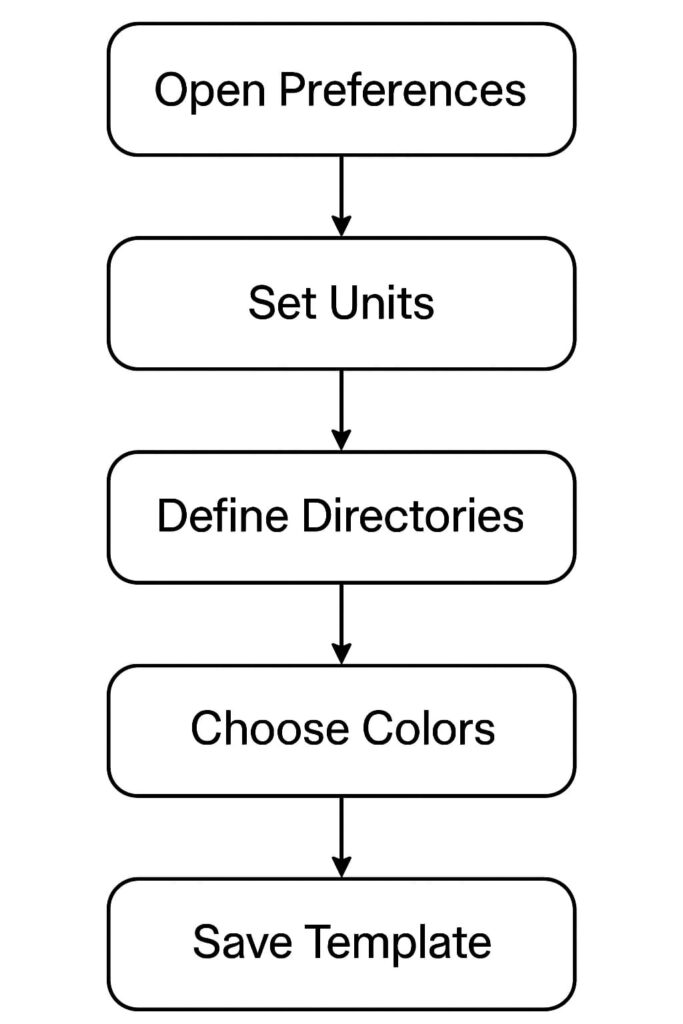
In this guide, we’ll cover how to:
- Choose the correct unit system (SI or US)
- Define file directories and data folders
- Customize fonts, colors, and display options
- Save and reuse preference templates for consistency
By the end, your software will be perfectly tuned for professional project work.
⚙️ Why Preferences Matter in PLS-CADD
Every PLS-CADD project depends on consistent units, directories, and preferences.
If your settings differ from your client or team, errors in sag-tension, structure geometry, and clearance checks can occur.
Correct preferences ensure:
- Consistent sag-tension results across projects
- Accurate mechanical calculations
- Uniform drawing scales and fonts
- Seamless collaboration between survey, mechanical, and drafting teams
Simply put — getting your preferences right from day one saves hours of troubleshooting later.
🧮 Step 1 – Opening the Preferences Dialog
Go to:
File → Preferences
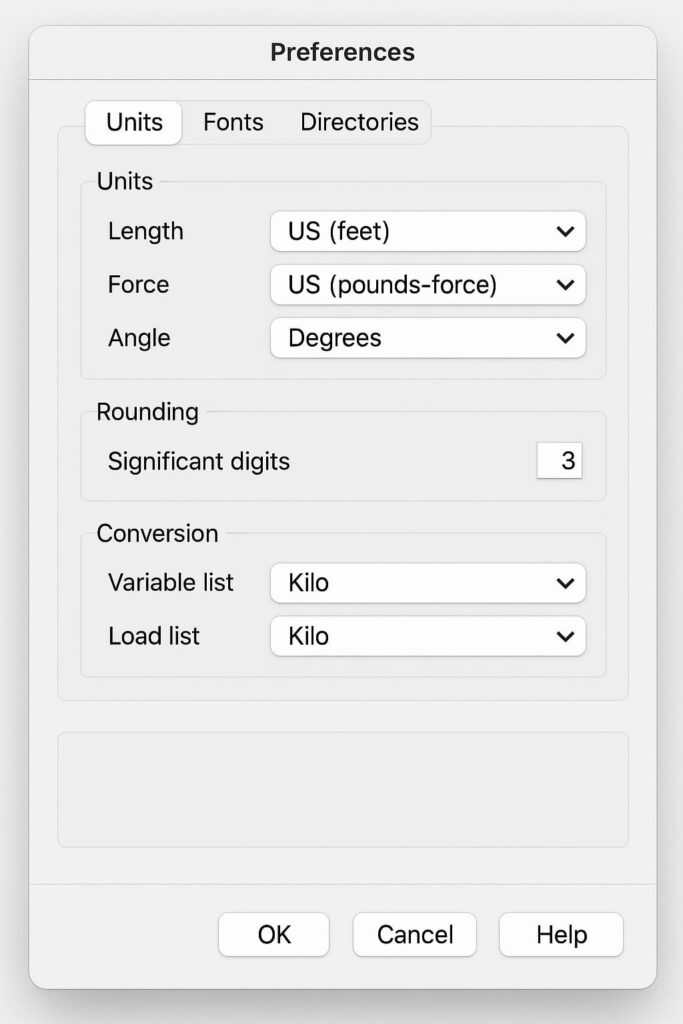
This opens the main Preferences dialog box, where you’ll find multiple tabs. Each tab controls a specific aspect of your working environment.
Main tabs include:
- Units
- File Directories
- Display Options
- Fonts and Colors
- Miscellaneous Settings
Let’s explore them step by step.
⚖️ Step 2 – Setting Up Units
Units define how PLS-CADD interprets all numeric values — from conductor tension to tower heights.
🔹 Common Unit Systems
| System | Units | Typical Use |
|---|---|---|
| US Customary | ft, lbs, °F | North America, legacy projects |
| SI (Metric) | m, N, °C | Middle East, Europe, Asia |
| SI (daN) | m, daN, °C | French and IEC standards |
Choose your preferred system under File → Preferences → Units.
PLS-CADD automatically converts data when switching systems — no data loss occurs.
💡 Pro Tip:
For international projects or Middle East-based designs, use SI Units (m, N, °C) for standardization.
📏 Step 3 – Defining Design Methods and Sag Formulas
Under Preferences → Criteria, you can select which sag-tension calculation method is used:
- Catenary Constant Method
- Horizontal Component of Tension Method
- Stringing Chart-Based Method
This choice affects conductor sag, tension, and clearance outcomes.
For most modern designs, engineers prefer the Catenary Method, which provides more accurate results under long spans or EHV voltages (400 kV and above).
🗂️ Step 4 – Setting File Directories
PLS-CADD depends on multiple linked files — terrain, structures, cables, and parts.
To keep things organized, define file directories where each type of data is stored.
Access it from:
File → Preferences → Directories
Recommended Directory Structure:
| Data Type | Suggested Folder | Example |
|---|---|---|
| Project Files | /Projects | C:\PLS-CADD\Projects |
| Structure Library | /Structures | C:\PLS-CADD\Structures |
| Cable Data | /Cables | C:\PLS-CADD\Cables |
| Parts Library | /Parts | C:\PLS-CADD\Parts |
| Criteria Files | /Criteria | C:\PLS-CADD\Criteria |
This ensures that whenever you backup or restore a project, PLS-CADD can locate all libraries instantly — preventing “missing file” errors.
💡 Tip:
Store libraries outside the project folder so they can be shared between multiple projects.
🎨 Step 5 – Adjusting Display and Font Preferences
Go to:
File → Preferences → Fonts/Colors
🔹 Fonts
- Choose clear, readable fonts for tables and drafting labels (e.g., Arial Narrow or Tahoma).
- You can specify different fonts for drafting, reports, and 3D labels.
🔹 Colors
Customize background and object colors to improve visibility:
- Background: White for print, black for on-screen design.
- Conductors: Light gray or orange.
- Structures: Blue or dark gray.
- Terrain: Brown or green.
You can also save color themes and reuse them across projects.
💡 Pro Tip:
Use contrasting colors in Profile View to clearly distinguish ground, conductors, and structures — especially when teaching or presenting.
🧰 Step 6 – Setting Miscellaneous Preferences
Under Preferences → Miscellaneous, you’ll find advanced customization options like:
- Default Zoom Factor for views
- Auto Backup Interval (set to every 10 or 15 minutes)
- Show Coordinate Grids in Plan/Profile view
- Language and Number Formatting
Enable Auto Backup to prevent data loss during unexpected shutdowns.
🧭 Step 7 – Configuring Display Options
PLS-CADD’s Display Options menu is a powerful visualization control panel.
You can open it via:
Drafting → Display Options
From here, you can:
- Turn structure labels ON/OFF
- Adjust span label positions
- Show/hide ground profile or terrain contours
- Enable structure compass for orientation
- Control the visibility of OPGW or shield wires
These settings improve clarity in both Profile and 3D Views and make your presentation-ready outputs look professional.
📦 Step 8 – Saving Your Preferences as a Template
Once you’ve configured your preferences, you can save them as a reusable template.
Steps:
- Go to File → Save Preferences As…
- Save your
.inipreference file with a clear name (e.g.,PLS_Default_SI.ini) - When starting a new project, simply Load Preferences from this file.
This ensures that all new projects automatically use your preferred unit system, colors, and directories — ideal for team consistency.
💡 Best Practice: Use Auto-Organize Feature
PLS-CADD’s Auto-Organize feature automatically places all project components (terrain, structure, criteria, cable, etc.) in proper subfolders.
To activate:
File → Preferences → Auto Organize Files
Benefits:
- Keeps project folders clean
- Prevents lost references
- Speeds up file management
- Simplifies backups
🧱 Step 9 – Backing Up Settings and Libraries
Never rely solely on your computer’s default directories.
Before starting a major project or update, backup:
- Structure libraries (
.str) - Cable data (
.cbl) - Criteria files (
.cri) - Preference settings (
.ini)
Save these to a shared or cloud drive to avoid data loss and maintain version control.
🧠 Pro Tips for Beginners
- Set Preferences Before Modeling – Avoid recalculating after design starts.
- Stick to One Unit System – Switching mid-project can cause confusion.
- Use Consistent Folder Names – Helps when restoring backups.
- Customize Fonts for Reports – Improves readability for clients.
- Save Preference Templates – Useful for teams and multi-project workflows.
🧭 Key Takeaways
- Preferences control all visual, mechanical, and file management settings.
- Always set your unit system and directories before modeling.
- Customize colors and fonts for better clarity and presentation.
- Save and reuse preference templates for consistency.
- Proper setup ensures accurate and professional project outputs.
✅ Conclusion
Setting up preferences and units is one of the most critical steps in PLS-CADD.
A properly configured environment ensures that every calculation, drawing, and report aligns with your project standards and regional practices.
For engineers in the Middle East and global design offices, using SI units with a clear directory and font setup guarantees smoother collaboration and professional-quality outputs.
📲 Want to Get Enrolled for PLS-CADD Training Courses?
👉 Join our official training to master PLS-CADD from beginner to advanced level:
🔗 CLICK HERE TO CONTACT US ON WHATSAPP


